
How to Add Custom Fonts in WordPress
Typography has a massive impact on how visitors perceive your brand, readability, and overall user experience. The default typefaces bundled with most themes are often not...

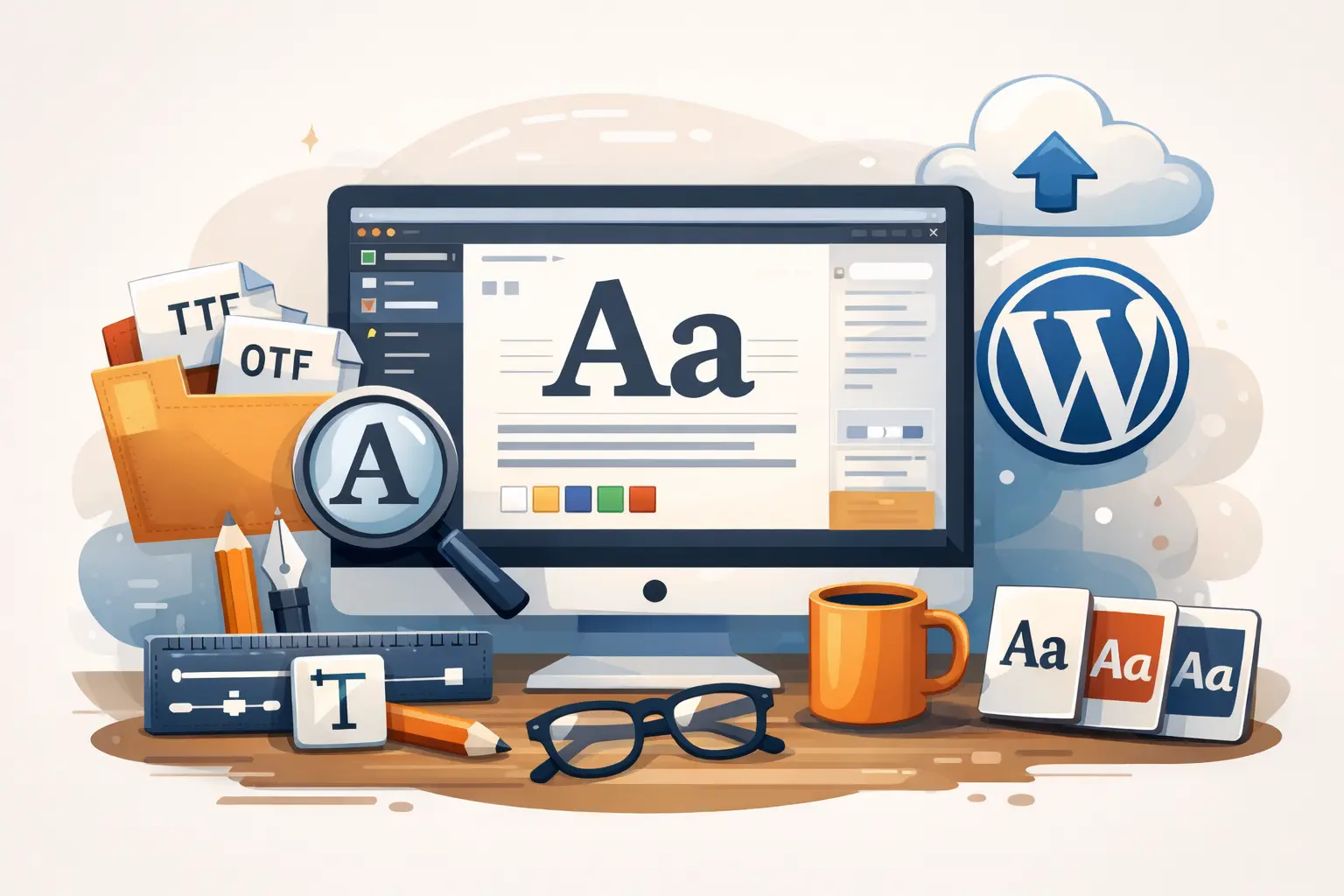
 Content entirely generated by artificial intelligenceThis content was entirely generated by artificial intelligence, with no human element (other than the prompt).
Typography has a massive impact on how visitors perceive your brand, readability, and overall user experience. The default typefaces bundled with most themes are often not enough. Fortunately, there are several reliable ways to add custom fonts in WordPress—without breaking your layout or tanking your performance.
Understanding Your Custom Font Options
Before diving into implementation, it’s important to understand the main ways you can work with custom typography in WordPress:
- Hosted font libraries (e.g., Google Fonts, Adobe Fonts): Easy to integrate, large selection, but may add external requests.
- Self-hosted fonts: Fonts stored on your own server. Better control, privacy, and performance when optimized correctly.
- Theme or builder integrations: Many premium themes and page builders include built-in font managers.
The best approach depends on your technical skills, performance goals, and whether you want full control over licensing and privacy.
Preparing Your Custom Fonts
Regardless of the method you choose, start by preparing your font files correctly. That usually means:
- Ensuring you have the proper license to use the font on the web.
- Generating web-friendly formats like WOFF and WOFF2 (and optionally TTF, EOT, SVG for legacy support).
- Organizing fonts in folders by font family and weight (e.g., regular, bold, italic).
If your font came only as OTF or TTF, use a reputable webfont generator (such as Font Squirrel’s Webfont Generator) to produce optimized formats. This helps reduce file size and ensure broad browser support.
Method 1: Adding Custom Fonts via a Plugin
If you prefer a no-code or low-code solution, using a plugin to manage custom fonts is the most user-friendly approach. There are several plugins designed specifically for managing typography and integrating custom font files.
Typical Steps Using a Font Management Plugin
While each plugin has a slightly different interface, the workflow generally looks like this:
- Install and activate your chosen font plugin from the WordPress plugin repository or by uploading it.
- Navigate to the plugin’s settings page (often under “Appearance” or its own menu item).
- Upload your custom font files (WOFF/WOFF2 recommended) and assign a font family name.
- Map the font to specific HTML elements (body text, headings) or to theme locations (site title, menus, etc.).
- Save your settings and clear any caches (plugin cache, server cache, CDN) to see the changes live.
Pros and Cons of Using a Plugin
- Pros:
- No need to edit theme files or write CSS from scratch.
- Often integrates directly with the Customizer or block editor controls.
- Easy to change fonts later without touching code.
- Cons:
- Additional plugin overhead and potential performance impact.
- Limited flexibility compared to manual code-based solutions.
- Risk of settings loss if the plugin is disabled or removed.
This route is ideal if you want a quick, user-friendly way to add custom fonts in WordPress without editing theme files or working with FTP.
Method 2: Using Google Fonts or External Font Services
External font libraries remain a popular way to enhance typography quickly. The most common example is Google Fonts, but the same principles apply to services like Adobe Fonts or other font CDNs.
Adding Google Fonts Manually
To add a Google Font manually, follow a process similar to this:
- Choose your fonts and weights from the Google Fonts library.
- Copy the embed link (typically a
<link>tag) provided by Google Fonts. - Hook that link into WordPress using proper theme or child theme functions.
A standard approach is to enqueue the stylesheet in your theme’s functions file using wp_enqueue_style. This ensures your fonts load correctly and follow WordPress best practices.
Using the Fonts in Your Styles
Once the fonts are enqueued, you can apply them with custom CSS by targeting elements like:
bodyfor global text.h1, h2, h3, h4, h5, h6for headings.- Specific classes or IDs for particular modules or sections.
For example, you might define a primary heading font and a different body font to create a consistent typography system that matches your brand.
Performance and Privacy Considerations
Using external font providers introduces additional HTTP requests to third-party servers, which can affect both performance and privacy compliance (for example, under GDPR in some jurisdictions). To mitigate this:
- Load only the font weights and styles you truly need.
- Use font-display strategies (e.g.,
font-display: swap;) to prevent invisible text issues. - Consider self-hosting fonts if you want to avoid external requests entirely.
Method 3: Self-Hosting Custom Fonts Manually
Self-hosting fonts gives you full control over loading behavior, file sizes, and privacy. It’s also the most robust long-term solution for professional projects and client work.
Step 1: Upload the Font Files
First, upload your webfont files to your hosting environment. A common structure looks like this:
wp-contentthemesyour-child-themefonts- FontFamily-Regular.woff2
- FontFamily-Regular.woff
- FontFamily-Bold.woff2
- FontFamily-Bold.woff
Place the fonts in a dedicated fonts folder inside your (child) theme so that you can reference them easily in your styles.
Step 2: Define @font-face Rules
Next, register the fonts in your stylesheet. This is usually done in the main theme CSS file or a custom stylesheet loaded via your child theme:
@font-face {
  font-family: 'MyCustomFont';
  src: url('fonts/MyCustomFont-Regular.woff2') format('woff2'),
       url('fonts/MyCustomFont-Regular.woff') format('woff');
  font-weight: 400;
  font-style: normal;
  font-display: swap;
}

@font-face {
  font-family: 'MyCustomFont';
  src: url('fonts/MyCustomFont-Bold.woff2') format('woff2'),
       url('fonts/MyCustomFont-Bold.woff') format('woff');
  font-weight: 700;
  font-style: normal;
  font-display: swap;
}
Key points to remember:
- font-family: This is the name you will use in your CSS declarations.
- src: Make sure the file paths are correct relative to the stylesheet.
- font-weight and font-style: Assign appropriate values for each variant to maintain consistency.
- font-display: swap;: Helps prevent the “flash of invisible text” and improves perceived performance.
Step 3: Apply the Custom Fonts Site-Wide
Once your fonts are declared, you can use them throughout your site. For example:
body {
  font-family: 'MyCustomFont', system-ui, -apple-system, BlinkMacSystemFont, 'Segoe UI', sans-serif;
}

h1, h2, h3, h4, h5, h6 {
  font-family: 'MyCustomFont', Georgia, 'Times New Roman', serif;
  font-weight: 700;
}
Adding sensible fallback fonts ensures that if your custom font fails to load, the browser will display a similar typeface instead of defaulting to something completely different.
Where to Add Your CSS in WordPress
There are several safe places to add these styles:
- Child theme stylesheet (
style.css): Best for developers and long-term maintainability. - Additional CSS in the Customizer: Convenient, but can become harder to maintain for large sites.
- Custom plugin or mu-plugin: Ideal if you want to preserve font settings independent of the theme.
Using a child theme is highly recommended to prevent losing your custom font setup during theme updates.
Method 4: Integrating Custom Fonts with Block Themes and the Site Editor
Modern block themes and the Site Editor introduce a new way to manage typography via theme.json. This allows you to register fonts and expose them in the block editor’s typography controls.
Defining Fonts in theme.json
In a block theme or child theme, you can declare typography settings and reference your fonts in a structured way. You typically:
- Add your custom font family to the settings.typography.fontFamilies section.
- Reference that font family for elements like body and headings in the styles section.
- Ensure the underlying CSS and
@font-facerules are also present to load the actual font files.
This approach gives content editors a clean dropdown of available fonts when styling blocks, keeping design decisions consistent across the site.
Advantages for Design Systems
Using theme.json for custom fonts helps you:
- Centralize all typography tokens in one configuration file.
- Ensure consistent font usage across templates, patterns, and reusable blocks.
- Make global style changes without manually editing multiple CSS files.
For complex projects or agencies managing multiple sites, this configuration-driven approach significantly improves maintainability.
Choosing the Right Method for Your Site
Different websites require different strategies for implementing custom typefaces. Here’s a quick comparison to help you decide:
- Use a plugin if:
- You’re not comfortable editing theme files.
- You want a GUI-based workflow to upload and switch fonts.
- You prioritize speed of implementation over fine-tuned control.
- Use Google Fonts or external services if:
- You need a wide selection of fonts quickly.
- You don’t mind loading assets from third-party servers.
- You want an easy way to prototype typography before committing.
- Self-host fonts manually if:
- You want maximum performance and privacy control.
- You’re building a long-term brand or client site.
- You’re comfortable working with CSS, child themes, and FTP.
- Leverage block theme configuration if:
- You’re using a full site editing theme.
- You want fonts to be selectable inside the block editor.
- You’re building a scalable design system for multiple templates.
Best Practices for Performance and SEO
Fonts are a visual asset, but they also affect performance metrics that influence search engine optimization and user experience. To keep your site fast and accessible, follow these guidelines:
- Limit font variants: Only load the weights and styles you actually use (for example, 400 and 700 rather than every weight from 100 to 900).
- Use modern formats: Prioritize WOFF2, which offers better compression with excellent browser support.
- Apply font-display: Use properties like
font-display: swapto avoid layout blocking and improve perceived loading speed. - Combine with caching and a CDN: Serve fonts from a fast, geographically distributed network when possible.
- Check cumulative layout shift (CLS): Ensure font changes do not cause major layout shifts that harm Core Web Vitals.
Search engines increasingly factor user experience signals into ranking algorithms. A thoughtful custom font setup can enhance your brand identity without sacrificing page load times or accessibility.
Practical Tips for Working with Custom Fonts
To make your typography implementation smoother and more professional, consider these additional tips:
- Test across devices and browsers: Confirm that your fonts look good and render consistently on mobile, tablet, and desktop, as well as in different browsers.
- Maintain a style guide: Document which font families, sizes, and weights to use for headings, body copy, buttons, and other interface elements.
- Use proper fallbacks: Always define backup fonts in your CSS stack in case custom fonts fail or are blocked.
- Stay within licensing terms: Ensure your web usage complies with the font’s license, especially for commercial projects.
- Monitor real-world performance: Use tools like PageSpeed Insights or Lighthouse to see how your font setup impacts metrics.
Thoughtful planning at the start saves you from messy overrides, inconsistent design, and performance issues down the road.
Conclusion
Custom typography is one of the most powerful ways to elevate your design, strengthen your brand, and improve readability. Whether you choose a plugin-based approach, external services, or a fully self-hosted workflow, WordPress offers flexible options for integrating unique typefaces into your site.
Start by deciding how much control and performance you need, then pick the method that aligns with your technical comfort level and long-term strategy. With a solid font setup in place, you can deliver a cohesive, polished experience that both visitors and search engines appreciate.

With over 5 years of experience as a WordPress Developer and Team Lead, I specialize in custom theme development, process automation, and AI integrations that streamline website management. I’m passionate about building fast, scalable, and maintainable digital solutions.
 Content entirely generated by artificial intelligenceThis content was entirely generated by artificial intelligence, with no human element (other than the prompt).
How to Embed a Google Map in Contact Forms

 Content entirely generated by artificial intelligenceThis content was entirely generated by artificial intelligence, with no human element (other than the prompt).
How to Clean Up Your WordPress Media Library