
How to Use Thumbnails with Previous and Next Post Links in WordPress
Navigation between articles is one of those subtle details that can dramatically improve user experience and engagement. Adding featured image thumbnails to your previous and next...

 Content entirely generated by artificial intelligenceThis content was entirely generated by artificial intelligence, with no human element (other than the prompt).
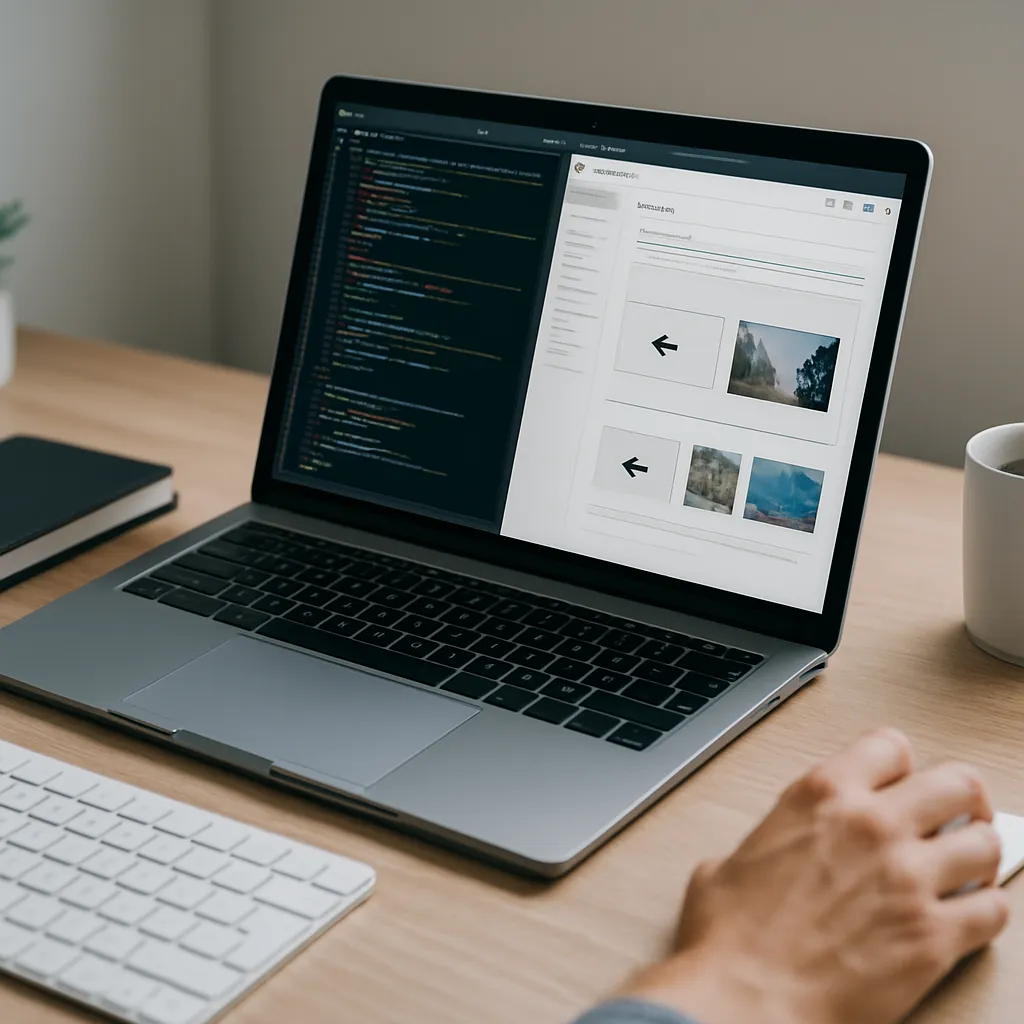
Navigation between articles is one of those subtle details that can dramatically improve user experience and engagement. Adding featured image thumbnails to your previous and next post links not only makes navigation more visual and intuitive, it also encourages users to explore more content and spend longer on your site.
Why Add Thumbnails to Previous and Next Post Links?
By default, many themes output simple text links for adjacent posts: “Previous Post” and “Next Post” or perhaps just the titles. While this works, it doesn’t fully leverage the power of your content and design.
Enhancing these links with thumbnails offers several benefits:
- Improved engagement: Visual cues make users more likely to click through to another article.
- Better content discovery: Readers see at a glance what the next or previous article is about.
- Stronger brand consistency: Using featured images reinforces your design and editorial style.
- SEO signals: Better internal linking and lower bounce rates can positively influence search performance.
If you run a blog, magazine, or portfolio, adding thumbnails to your post navigation is a quick win for both usability and on-site SEO.
Understanding WordPress Previous and Next Post Functions
WordPress provides several template tags to output links to adjacent posts. The most common are:
- previous_post_link() – Outputs a link to the previous post.
- next_post_link() – Outputs a link to the next post.
- get_previous_post() – Returns the previous post object.
- get_next_post() – Returns the next post object.
The first two functions echo ready-made HTML links, which is great for simple setups but not flexible enough when you want to include a featured image. For thumbnail-based navigation, you’ll typically work with get_previous_post() and get_next_post() to get full control over the markup.
Basic Template Setup for Thumbnail Navigation
To add thumbnails to your previous and next post links, you’ll usually modify the single.php template (or a related partial, such as content-single.php) in your child theme.
A common pattern is to place the navigation block at the end of the post content, just above the comments section. Before making any changes, always work in a child theme or custom plugin to ensure your modifications are update-safe.
Step 1: Get Adjacent Posts
You can obtain the previous and next post objects using the following functions:
<?php
$prev_post = get_previous_post();
$next_post = get_next_post();
?>
Each of these variables will either be a WP_Post object or null if there is no adjacent post in that direction. You should always check for this before outputting HTML.
Step 2: Build Custom HTML with Thumbnails
Once you have the post objects, you can retrieve and display their featured images, titles, and links. Here is a practical example for a simple previous/next navigation block with thumbnails:
<?php
$prev_post = get_previous_post();
$next_post = get_next_post();
?>
<nav aria-label="Post navigation">
<ul>
<?php if ( $prev_post ) : ?>
<li>
<a href="<?php echo get_permalink( $prev_post->ID ); ?>">
<?php
if ( has_post_thumbnail( $prev_post->ID ) ) {
echo get_the_post_thumbnail( $prev_post->ID, 'thumbnail' );
}
?>
<span>← <?php echo get_the_title( $prev_post->ID ); ?></span>
</a>
</li>
<?php endif; ?>
<?php if ( $next_post ) : ?>
<li>
<a href="<?php echo get_permalink( $next_post->ID ); ?>">
<?php
if ( has_post_thumbnail( $next_post->ID ) ) {
echo get_the_post_thumbnail( $next_post->ID, 'thumbnail' );
}
?>
<span><?php echo get_the_title( $next_post->ID ); ?> →</span>
</a>
</li>
<?php endif; ?>
</ul>
</nav>
This example:
- Uses semantic nav and ul elements for accessibility.
- Displays the featured image at thumbnail size (commonly 150×150px by default).
- Falls back gracefully if there is no adjacent post.
Choosing the Right Thumbnail Size
WordPress includes a few standard image sizes: thumbnail, medium, large, and full. For navigation purposes, a smaller size is typically best to keep the layout tight and maintain fast load times.
You can also register a custom image size in your theme to better match your design:
<?php
// In functions.php
add_theme_support( 'post-thumbnails' );

add_image_size( 'nav-thumb', 120, 80, true );
Now you can use this size in your navigation markup:
<?php
echo get_the_post_thumbnail( $prev_post->ID, 'nav-thumb' );
?>
The last parameter, set to true, enables hard cropping so that all navigation thumbnails have consistent proportions.
Aligning Navigation with Categories or Custom Taxonomies
In some editorial workflows, you may want previous and next links to stay within the same category or custom taxonomy term. WordPress supports this out of the box with additional parameters.
For functions like get_previous_post() and get_next_post(), you can specify whether to stay in the same taxonomy:
<?php
$prev_post = get_previous_post( true ); // true = in same category
$next_post = get_next_post( true );
?>
If you work with custom post types and taxonomies, use the taxonomy-aware versions:
<?php
$prev_post = get_adjacent_post( true, '', true, 'your_taxonomy_slug' );
$next_post = get_adjacent_post( true, '', false, 'your_taxonomy_slug' );
This approach keeps navigation tightly focused on related content, which can improve user satisfaction and internal linking relevance.
Ensuring Responsive and Accessible Navigation
Adding thumbnails is not just about visuals; it’s also an opportunity to improve accessibility and responsiveness.
Accessible Markup Considerations
To keep navigation accessible:
- Wrap links in a nav element with an aria-label, such as
aria-label="Post navigation". - Ensure each thumbnail has meaningful alt text. By default, WordPress uses the image’s alt attribute if set.
- Provide clear link text, not just arrows or icons. Including the post title is ideal.
- Maintain a logical structure, such as using a list (ul/li) for multiple links.
Responsive Behavior Without Custom Classes
Even without custom classes or inline styles, you can rely on your theme’s existing CSS to make navigation responsive. Most modern themes already style navigation lists and images responsively.
However, when designing the layout, keep these practices in mind:
- Use small or medium image sizes to avoid layout shifts on mobile.
- Keep titles concise so they don’t break the layout on narrow screens.
- Test your navigation on multiple devices to ensure thumbnails resize properly.
Integrating Thumbnail Navigation in Block-Based Themes
With block themes and the Site Editor, you can still use PHP-driven logic for advanced navigation in a few ways:
- Register a block pattern that includes a template part with your PHP navigation code.
- Use a template part file (for example, template-parts/navigation/post-nav.php) and include it in relevant templates such as single.html through the Site Editor.
- Extend the Post Navigation block via a custom block plugin if you need a fully block-native solution.
Even in a block-first workflow, the underlying logic for retrieving adjacent posts and thumbnails remains the same. The main difference is where you place the code and how it interacts with the block structure.
SEO Benefits of Thumbnail-Based Post Navigation
While adding thumbnails is primarily a UX enhancement, it has indirect SEO advantages that are worth considering:
- Increased pages per session: Visual navigation naturally drives more clicks to related articles.
- Lower bounce rate: Readers who might otherwise leave after a single post are more likely to continue browsing.
- Enhanced internal linking: Consistent previous and next post links help search engines crawl and understand your content structure.
- Better engagement signals: Time on site and depth of visit can contribute to stronger organic performance.
To maximize these benefits:
- Ensure every important article has a compelling featured image.
- Use descriptive, keyword-relevant titles that appear in your navigation.
- Consider keeping adjacent navigation within the same topic or category for higher relevance.
Handling Edge Cases and Fallbacks
A robust implementation must account for situations where one or both adjacent posts are missing, or where a post doesn’t have a featured image.
When There Is No Previous or Next Post
On the first or last article in a series, it’s normal for one direction to be empty. You can handle this gracefully by:
- Only outputting the link for directions that exist.
- Optionally replacing the missing link with a “Back to Blog” or archive link.
For example:
<?php if ( ! $prev_post && $next_post ) : ?>
    <!-- Only next post available -->
<?php elseif ( $prev_post && ! $next_post ) : ?>
    <!-- Only previous post available -->
<?php endif; ?>
When a Post Has No Featured Image
If some posts lack featured images, your navigation could look inconsistent. To handle this, you can:
- Display a default placeholder image when no thumbnail is set.
- Show only the post title for those entries.
Here’s a simple placeholder approach:
<?php
if ( has_post_thumbnail( $prev_post->ID ) ) {
    echo get_the_post_thumbnail( $prev_post->ID, 'nav-thumb' );
} else {
    echo '<img src="' . esc_url( get_template_directory_uri() . '/images/placeholder-nav.jpg' ) . '" alt="" />';
}
?>
This keeps your navigation visually balanced, even if your editorial team has not set thumbnails for every post.
Practical Example: Combined Previous/Next Navigation Block
To bring everything together, here is a more complete example that you can adapt within your single post template:
<?php
$prev_post = get_previous_post();
$next_post = get_next_post();
if ( ! $prev_post && ! $next_post ) {
return;
}
?>
<nav aria-label="Post navigation">
<ul>
<?php if ( $prev_post ) : ?>
<li>
<a href="<?php echo get_permalink( $prev_post->ID ); ?>">
<?php
if ( has_post_thumbnail( $prev_post->ID ) ) {
echo get_the_post_thumbnail( $prev_post->ID, 'nav-thumb' );
}
?>
<strong>← <?php echo esc_html( get_the_title( $prev_post->ID ) ); ?></strong>
</a>
</li>
<?php endif; ?>
<?php if ( $next_post ) : ?>
<li>
<a href="<?php echo get_permalink( $next_post->ID ); ?>">
<?php
if ( has_post_thumbnail( $next_post->ID ) ) {
echo get_the_post_thumbnail( $next_post->ID, 'nav-thumb' );
}
?>
<strong><?php echo esc_html( get_the_title( $next_post->ID ) ); ?> →</strong>
</a>
</li>
<?php endif; ?>
</ul>
</nav>
This snippet checks for the existence of adjacent posts, outputs thumbnails when available, and uses semantic HTML that your theme can easily style.
Conclusion
Enhancing previous and next post links with thumbnails is a relatively small change that can have a big impact on how visitors move through your site. By leveraging WordPress’s adjacent post functions and featured images, you create a more visual, engaging navigation experience that supports both usability and SEO.
Whether you manage a content-heavy magazine, a personal blog, or a professional portfolio, investing a little time in thumbnail-based navigation is an effective way to keep readers exploring your work and to help search engines better understand the relationships between your posts.

With over 5 years of experience as a WordPress Developer and Team Lead, I specialize in custom theme development, process automation, and AI integrations that streamline website management. I’m passionate about building fast, scalable, and maintainable digital solutions.
 Content entirely generated by artificial intelligenceThis content was entirely generated by artificial intelligence, with no human element (other than the prompt).
How to Embed a Google Map in Contact Forms

 Content entirely generated by artificial intelligenceThis content was entirely generated by artificial intelligence, with no human element (other than the prompt).
How to Clean Up Your WordPress Media Library