Where can I find premium WordPress themes for e-commerce sites?

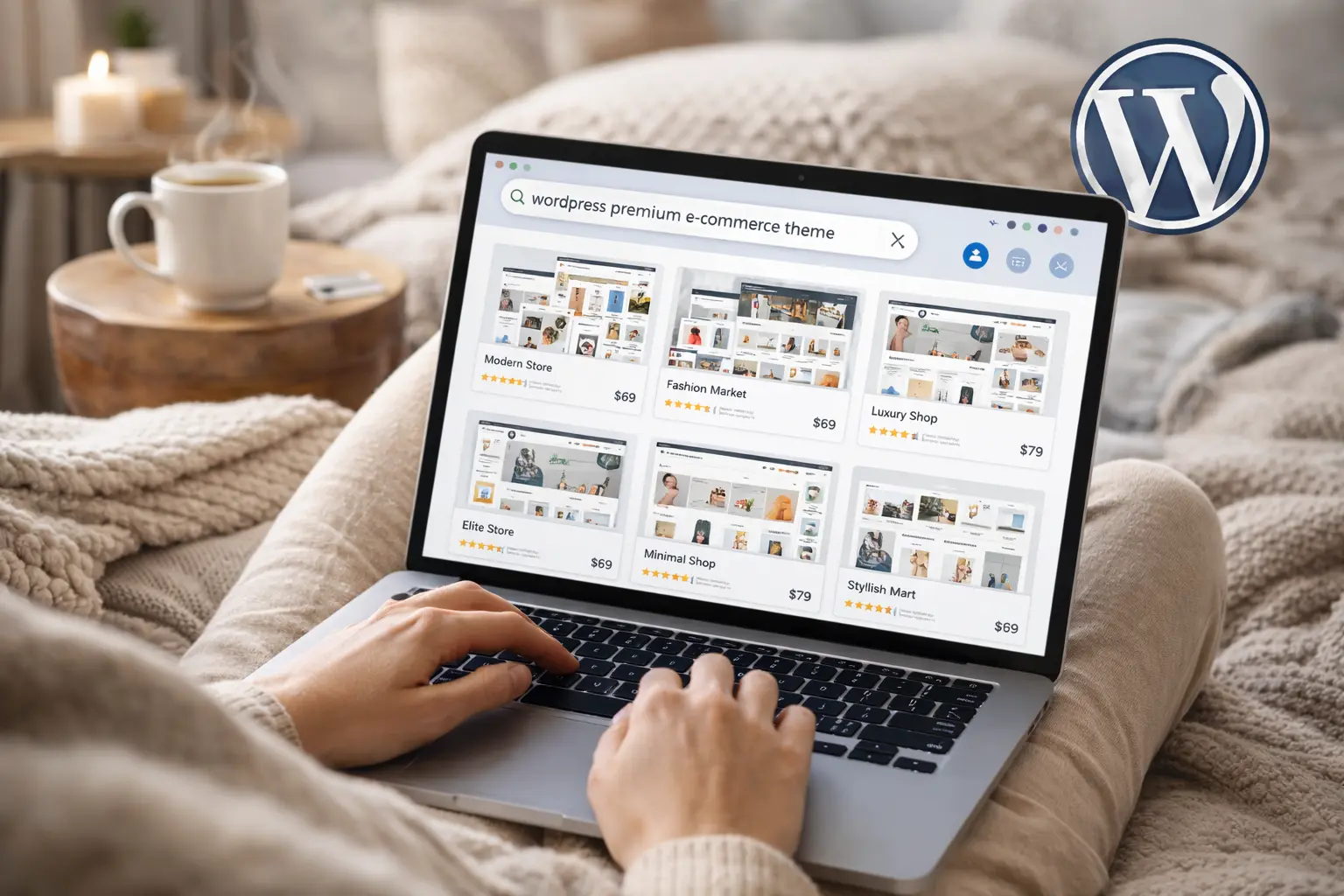
Choosing the right premium theme for an online store can make or break conversions, site speed, and long-term maintainability. As a professional WordPress developer, I’ll walk you through where to find high-quality e-commerce themes, how to evaluate them, and when to build custom templates instead of relying on off-the-shelf products. This guide focuses on practical options, real examples, and technical checkpoints so you can ship fast without sacrificing flexibility or SEO.
Table of contents
Where to look: reputable marketplaces and shops
Start with well-established marketplaces and theme shops that specialize in e-commerce and WooCommerce integrations. These sources balance variety with reliable support, frequent updates, and real user reviews.
- ThemeForest (Envato Market) — Massive catalog with detailed reviews and demos. Good for niche e-commerce themes, but vet authors carefully for update frequency and support responsiveness.
- WooCommerce.com — Official extensions and themes optimized for WooCommerce. Themes here prioritize compatibility and best practices for store features.
- Elegant Themes — Divi and Divi Builder provide powerful visual theming and a library of e-commerce layouts for building custom templates quickly.
- StudioPress / Genesis Framework — Focus on performance and SEO; many child themes target stores and are developer-friendly.
- Astra, GeneratePress, Kadence — Lightweight frameworks with premium add-ons and dedicated WooCommerce modules. Great when you want a fast, flexible starting point.
- TemplateMonster & Creative Market — Useful for varied design directions; check ratings and support terms.
- Theme shops with premium single-theme focus — Examples: Flatsome, WoodMart, Porto, Shopkeeper. These often include deeply integrated WooCommerce features and ready-made shop demos.
What to evaluate before buying
Not every attractive demo is suitable for your store. Use this checklist to compare options:
- WooCommerce compatibility — Ensure templates fully support the version of WooCommerce you run and common extensions (product filters, bookings, subscriptions).
- Performance — Look for lightweight code, minimal DOM, and compatibility with performance plugins and CDNs. Run theme demos through PageSpeed or Lighthouse where possible.
- Responsive design & mobile UX — Mobile checkout behavior and product galleries must be flawless.
- Support & updates — Confirm update cadence and support channels (ticket system, forums, Slack). Premium themes should have a clear changelog.
- SEO & structured data — Built-in product schema, clean heading structure, breadcrumb support, and canonical handling are essential.
- Accessibility — Check keyboard navigation, color contrast, and ARIA use if accessibility is a priority.
- Demo content & import — One-click import can speed up setup, but confirm it doesn’t bloat the site with unused plugins or content.
- Licensing — Verify GPL compatibility or vendor restrictions if you plan to redistribute or white-label the theme.
When to use a premium theme vs build custom templates
Premium themes excel for speed-to-market, polished demos, and built-in commerce features. However, custom templates become necessary when you need unique checkout flows, specialized product displays, or strict performance and accessibility requirements.
- Use a premium theme when: You need fast deployment, lots of ready-made layouts, and a lower budget. Choose lightweight frameworks (Astra, GeneratePress) if performance matters.
- Build custom templates when: The UX requires bespoke product layouts, complex filtering, headless integrations, or you want minimal third-party code and absolute control over markup and schema.
Hybrid approach
Start with a high-quality premium theme and replace specific parts with custom templates or a child theme. This combines speed and customization while keeping the vendor-maintained core.
How to implement custom templates correctly
Custom templates give you pixel-perfect control over product pages, category listings, and checkout flow. Follow these best practices:
- Use a child theme — Never modify the parent theme directly. A child theme preserves updates and isolates your template changes.
- Understand template hierarchy — For WooCommerce, override templates safely by copying files into your child theme’s
/woocommerce/folder and keeping track of upstream changes. - Prefer hooks and filters — Use action hooks and filters for small changes to avoid duplicating entire templates. This keeps maintenance simpler.
- Leverage page builders carefully — Tools like Elementor, Divi, or Beaver Builder speed up design of custom templates. For long-term performance, use their theme-builder features selectively and clean up unused assets.
- Adopt block-based templates — For new projects, consider full-site editing (FSE) with block themes and template parts for cleaner, modern markup and easier content editing.
- Implement structured data — Output Product schema, aggregateRating, offers, and availability so search engines can render rich results.
Practical examples of template files
- single-product.php — Main wrapper for product pages; keep it slim and pull parts from content templates.
- content-single-product.php — Template part that contains title, gallery, price, add-to-cart, and meta sections.
- archive-product.php — Controls shop and category listing layouts. Use custom loops for advanced filtering or infinite scroll.
- woocommerce/loop/** files — Customize product cards and loop templates to change grid behavior or lazy-loading strategy.
Theme and template performance tips
Speed is critical for conversions and SEO. Follow these developer-level optimizations:
- Load only necessary plugins — Avoid themes that bundle dozens of plugins. Each plugin can add CSS/JS overhead.
- Use image optimization and responsive srcset — Serve WebP where possible and implement proper picture sizes for product galleries.
- Defer non-critical JS and inline critical CSS — Prioritize first contentful paint and avoid render-blocking assets.
- Minimize DOM size — Complex demos often generate large DOMs; simplify product cards and remove hidden elements from initial markup.
- Implement caching and CDN — Page caching, object caching, and a CDN reduce latency and scale during sales peaks.
Where to hire help when you need custom work
If you prefer outsourcing template development or a full theme rebuild, consider vetted developer networks and agencies:
- Codeable — Pre-vetted WordPress experts for custom WooCommerce templates and integrations.
- Toptal — High-end freelance developers for complex builds and architecture work.
- Specialist agencies — Look for agencies with proven e-commerce case studies and performance-focused portfolios.
Examples: recommended premium themes for stores
- Flatsome — Popular for small-to-medium stores, strong UX features and product page options.
- WoodMart / Porto — Feature-rich marketplaces with many demo stores and advanced filters.
- Astra Pro + WooCommerce — Lightweight, highly customizable, great for SEO and speed.
- GeneratePress Premium — Minimal footprint, excellent for developers who want clean markup.
- Divi (Elegant Themes) — Powerful visual builder and theme builder for custom templates without heavy coding.
- Kadence — Modern block-friendly theme with WooCommerce blocks and fast performance.
Conclusion
Finding the right premium theme for your e-commerce site means balancing polish, performance, and extensibility. Start with reputable marketplaces and lightweight frameworks if speed and SEO are priorities. Use premium themes to accelerate launch, then layer in child-theme custom templates or block-based template parts for unique product experiences. When requirements exceed theme capabilities, hire an experienced WordPress developer to build custom templates that maintain SEO, performance, and long-term maintainability. With the right approach, you can deliver a store that converts and scales without technical debt.