How do I set up multi-currency support in WooCommerce for European customers?

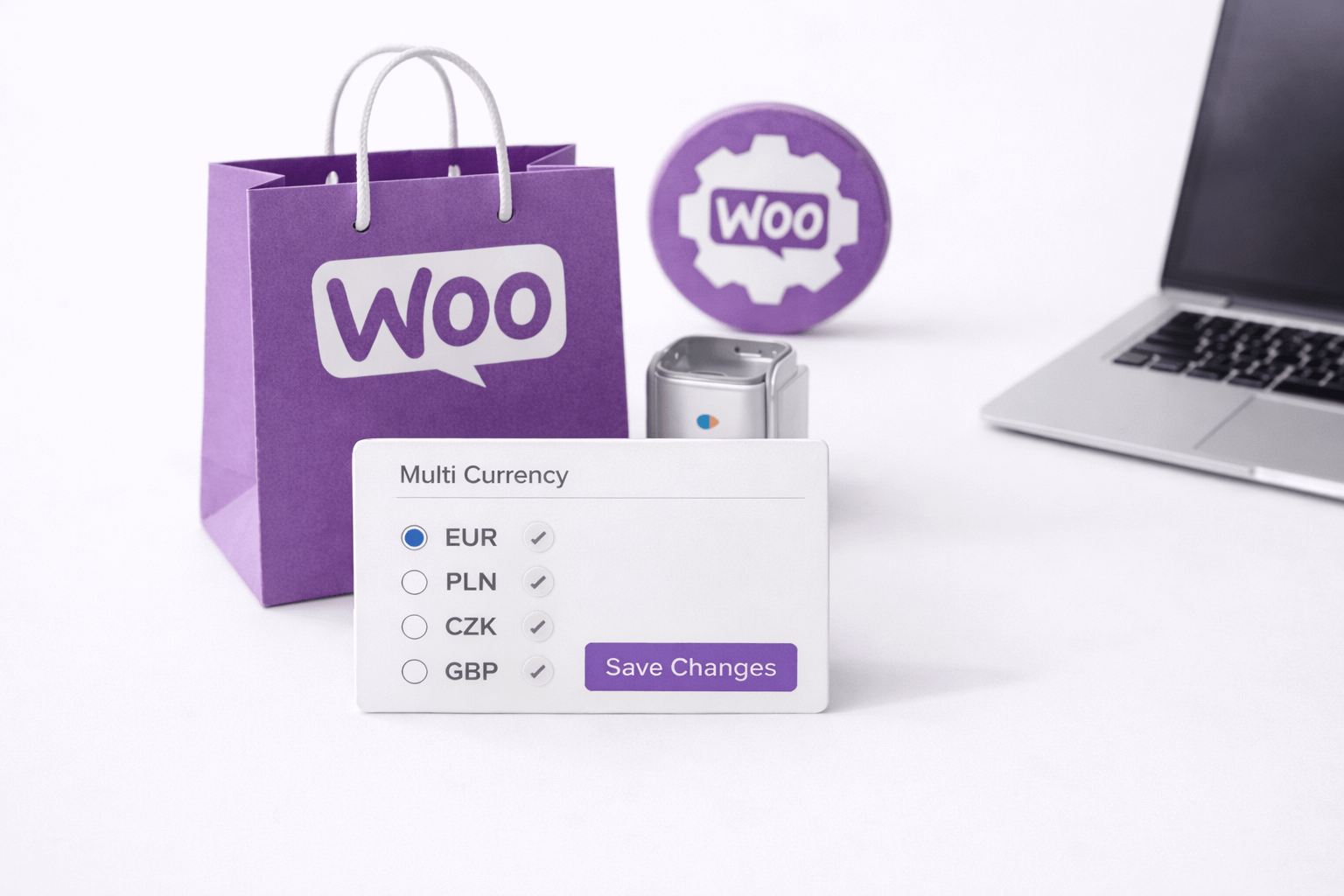
Offering multiple currencies to European customers removes friction, reduces cart abandonment, and improves conversion rates — but it requires careful setup in WordPress and WooCommerce to get pricing, taxes, payment processing, caching and SEO right. This guide walks you through a practical, developer-focused approach to implementing multi-currency support that works for B2C and B2B stores serving the EU.
Table of contents
Why multi-currency matters for European customers
Customers trust prices shown in their local currency. For European stores this often means displaying EUR plus popular regional currencies (GBP, PLN, SEK, etc.), respecting local formatting (comma vs period), and correctly applying VAT rules. A polished multi-currency experience increases transparency and reduces barriers at checkout.
Multi-currency strategies: choose what fits your business
- Display-only conversion — Show converted prices on the frontend but charge in your store base currency at checkout. Simple but can surprise customers when the checkout currency differs.
- True multi-currency (recommended) — Customers see and pay in their local currency. Orders store the transaction currency. Requires gateway support for charging in multiple currencies.
- Country-specific stores or subfolders — Full localization per market (currency + language + pricing). Better for large operations but heavier to maintain.
Core components you must configure
- Currency selection and conversion: plugin or custom solution that shows the right currency and applies exchange rates.
- Payment gateway compatibility: ensure the gateway supports the currencies you present.
- Taxes and VAT: EU VAT rules require accurate calculation and optional VAT removal for validated B2B customers.
- Caching and geolocation: dynamic currency requires careful cache strategy to avoid showing wrong prices.
- SEO and UX: clearly indicate currency per page and avoid duplicate content issues if you expose currency-specific URLs.
Step-by-step setup (practical)
1. Decide on base currency and pricing approach
Keep a single base currency for bookkeeping (common) and decide whether prices are entered inclusive or exclusive of tax in WooCommerce settings (WooCommerce → Settings → General → Prices entered with tax). For EU stores, many merchants enter prices inclusive of VAT for B2C and manage exemptions for B2B with VAT IDs.
2. Enable geolocation
WooCommerce provides geolocation to detect customer country (WooCommerce → Settings → General → Default customer location → Geolocate or Geolocate (with page caching support)). Use the latter if you support cached pages and need more reliable behavior with caching proxies.
3. Install a reliable currency switcher plugin
There’s no native multi-currency in core WooCommerce; use a well-maintained plugin. Popular options include:
- WOOCS – Currency Switcher (simple, widely used)
- Aelia Currency Switcher (robust, premium)
- Currency Switcher by Realmag (WOOCS) or Multi-currency solutions from reputable developers
Key plugin features to enable: automatic exchange rates (optional), manual rate override, geolocation-based default currency, widget/shortcode for currency switching, per-currency rounding and format settings, and order currency stored in order metadata.
4. Configure exchange rates and rounding
Choose automatic updates (via a reliable rates API) but set sensible update frequency and store rates in the database to avoid downtime if the API is unavailable. Use rounding rules so prices look natural (e.g., round to .99 endings). Document your rounding logic to maintain margin accuracy.
5. Ensure payment gateways accept presented currencies
Not every gateway supports every currency. For European multi-currency:
- Stripe — Supports charging in many currencies. Create PaymentIntents in the customer’s currency. Ensure settlement to your bank is configured and be aware of conversion/settlement fees.
- PayPal — Supports multiple currencies; verify the receiving account currency settings and how PayPal converts funds.
- Other gateways — Check supported currencies and how refunds are handled. Some gateways will convert at payout causing differences in accounting.
Test each gateway end-to-end in sandbox mode for all target currencies.
6. Configure tax and VAT handling for EU customers
EU VAT rules are complex. For WooCommerce:
- Enable taxes (WooCommerce → Settings → General → Enable taxes).
- Set tax calculation based on customer shipping or billing address (commonly shipping for B2C).
- Decide “Prices entered with tax” vs “without tax” and configure tax rates per EU country in WooCommerce → Settings → Tax.
- For B2B intra-community supplies, integrate VAT number validation (plugins like “EU VAT Number” or “WooCommerce EU VAT Assistant”). When a valid EU VAT ID is provided, you may zero-rate VAT (consult accountant).
- Consider OSS (One-Stop Shop) reporting obligations for distance sales over EU thresholds — use accounting integrations or plugins to track VAT by destination country.
7. Address caching and dynamic pricing
Because currency is dynamic, caches must not serve a EUR page to a GBP visitor. Options:
- Disable full-page caching for shop/category pages (not ideal).
- Use currency-aware cache variation: configure Vary header or cache key per currency.
- Render prices server-side via geolocation and use small AJAX fragments for parts of the page that show prices, leaving the rest cached.
Most mature currency plugins include strategies to work with caching plugins and CDNs — test carefully.
8. UI and UX: currency switcher placement and formatting
Place the currency selector in the header or minicart. Always show the currency code/symbol next to prices, and ensure formatting matches local conventions (thousands separator, decimal separator, symbol position).
9. Accounting and reporting
Decide whether you will report in base currency or convert sales back to base for bookkeeping. WooCommerce stores the order currency and exchange rate, but accounting systems may require exports or plugins to handle currency conversion. Use plugins that export orders with currency and converted totals or integrate with accounting software that supports multi-currency.
Examples (two practical scenarios)
Example A — B2C European store with EUR base currency
- Base currency: EUR. Target currencies: GBP, PLN, SEK.
- Plugin: Aelia or WOOCS for multicurrency with geolocation and auto rates.
- Payment gateway: Stripe configured to accept GBP and PLN; PayPal for fallback.
- Taxes: Prices entered with tax; WooCommerce tax zones configured for each EU country.
- Cache: Configure cache to vary by currency header and use AJAX for cart fragments.
Example B — B2B EU store requiring VAT validation
- Base currency: EUR. Offer prices in EUR and GBP.
- Plugin: Multicurrency switcher + “EU VAT Number” plugin to validate VAT IDs.
- VAT handling: If a valid intra-community VAT ID is provided, remove VAT at checkout; record VAT ID on the order.
- Payment: Stripe, ensure payouts and refunds tracked against original currency transactions.
Testing and QA checklist before launch
- Verify geolocation maps countries to the correct default currency for all target locations.
- Test manual currency switching and ensure widget/shortcode works on mobile and desktop.
- Make test purchases in each currency using gateway sandbox accounts; confirm settlement and refund flows.
- Check tax calculations for multiple EU countries, and test VAT ID exemption flows for B2B.
- Confirm caching does not leak prices across currencies; verify varied responses per currency.
- Validate email templates show the correct currency and order totals.
- Export sample orders to accounting software and confirm amounts match expectations.
Common pitfalls and how to avoid them
- Showing converted prices but charging in a different currency — Use true multi-currency to avoid surprises or clearly disclose conversion at checkout.
- Misconfigured payment gateways — Always confirm gateway supports the currencies you offer and how refunds are handled.
- VAT mistakes — EU VAT rules are nuanced; validate VAT IDs and consult a tax advisor if unsure.
- Cache issues — Currency must be part of the cache key or rendered via AJAX fragments to prevent incorrect pricing display.
- Poor rounding rules — Rounding can erode margins; apply consistent rules and document them.
Final best practices
- Prefer a tested multi-currency plugin from a reputable developer and keep it updated.
- Keep base currency consistent for accounting; store exchange rate metadata on orders.
- Ensure payment gateways are tested for each currency and that settlement behavior is understood.
- Implement VAT validation for B2B and use OSS/compliance tools for distance selling obligations in the EU.
- Monitor analytics by currency and country to tune pricing, conversion, and shipping strategies.
Conclusion
Implementing multi-currency support in WooCommerce for European customers requires a blend of the right plugin, gateway configuration, VAT-aware tax handling, and caching strategies. With careful testing and clear UX (currency labels, consistent rounding, and transparent checkout), you’ll give European buyers a smooth, trustworthy checkout experience that improves conversions. If you need help implementing a specific plugin or testing gateway behavior across currencies, I can provide step-by-step configuration guidance or review your current setup.