
How to Fix File and Folder Permissions Error in WordPress
When your site suddenly starts throwing permission denied messages, blank pages, or “403 Forbidden” errors, file and folder permissions are often the hidden culprit. Understanding how...

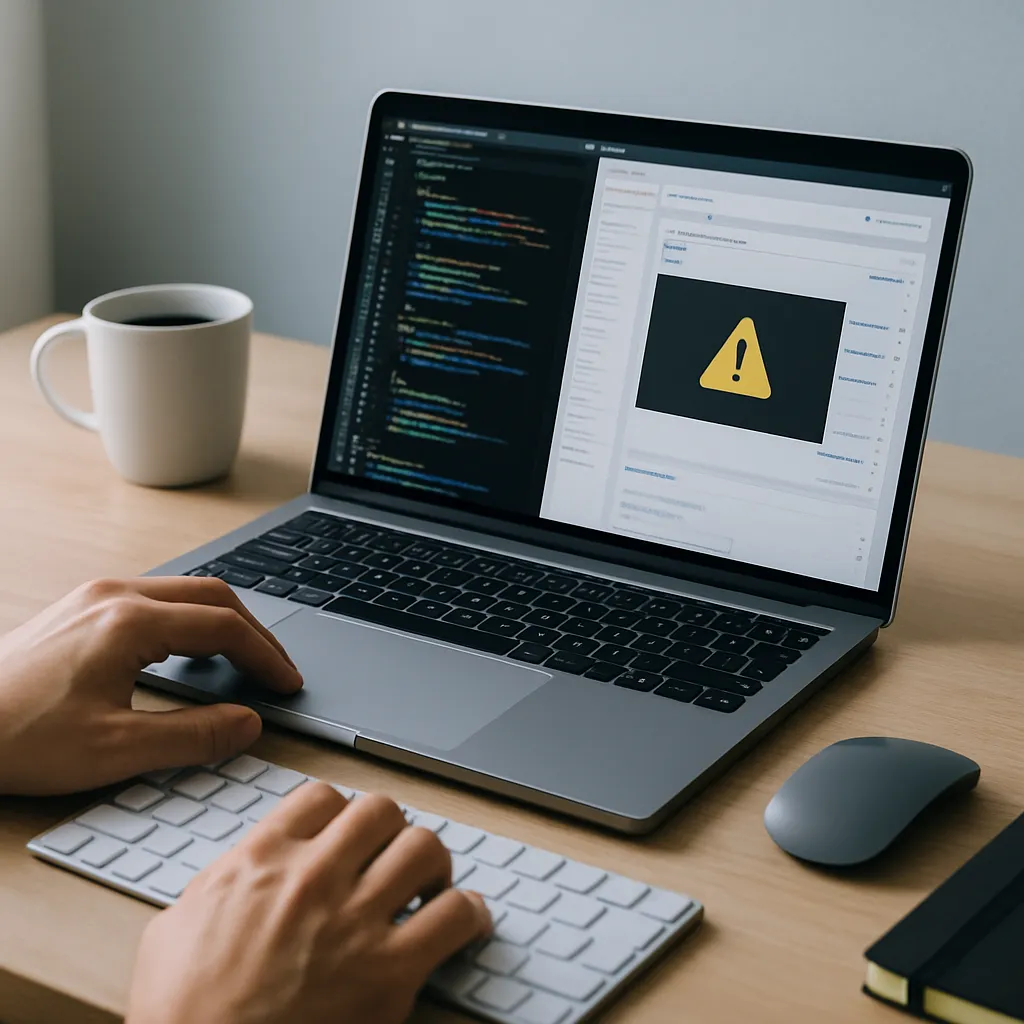
 Content entirely generated by artificial intelligenceThis content was entirely generated by artificial intelligence, with no human element (other than the prompt).
When your site suddenly starts throwing permission denied messages, blank pages, or “403 Forbidden” errors, file and folder permissions are often the hidden culprit. Understanding how permissions work and how to fix them safely is essential for keeping your site secure, stable, and easy to manage.
What Are File and Folder Permissions in a WordPress Site?
Every file and directory on your hosting server has a set of permissions that control who can read, write, or execute it. In most WordPress environments, these permissions are defined using a three-digit number such as 644 or 755.
Each digit represents a different group of users:
- Owner – usually the user account under which your hosting runs.
- Group – users in the same server group.
- Public (World) – anyone who can access your server, including web visitors.
The digits are calculated from three possible actions:
- 4 – Read
- 2 – Write
- 1 – Execute
These values are combined. For example, 6 (4+2) means read + write, while 7 (4+2+1) means read + write + execute. So, a permission of 755 means:
- Owner: 7 – read, write, execute
- Group: 5 – read, execute
- Public: 5 – read, execute
Common WordPress Permission Settings
In a typical WordPress installation, recommended permissions are:
- Files: 644
- Directories: 755
- wp-config.php: 640 or 600 (more restrictive for security)
These settings strike a balance between security and functionality. If permissions are too open (for example, 777), attackers may upload or modify files. If they are too restrictive, the server cannot read or write what it needs, and you get errors.
Symptoms of Incorrect File and Folder Permissions
Permission issues can manifest in several ways. Recognizing them early helps you pinpoint the problem quickly.
Typical Errors You Might See
- 403 Forbidden – You don’t have permission to access this resource.
- 500 Internal Server Error – Often appears when the server cannot execute required files.
- Unable to create directory or Failed to write file to disk – When uploading media.
- Installation failed: Could not create directory – While installing themes or plugins.
- Briefly unavailable for scheduled maintenance stuck on screen – Update files not accessible or removable.
Functional Problems Caused by Wrong Permissions
- Unable to update the core, themes, or plugins from the admin dashboard.
- Media uploads failing or disappearing.
- Customizer or theme options not saving correctly.
- White screen (blank page) on the front end or in the admin area.
If you’ve recently migrated hosting, used a different method to upload files, or changed ownership at the server level, incorrect permissions are especially likely.
Preliminary Safety Steps Before You Change Permissions
Changes to permissions affect your entire installation, so it’s important to proceed carefully.
- Take a full backup of your site (files and database) using a reliable backup plugin or your hosting panel.
- Note current permissions on key files like
wp-config.phpand thewp-contentdirectory before you alter anything. - Use an SFTP or SSH connection instead of unsecured FTP, so your credentials and file changes are not exposed.
Once you have a backup and a secure connection in place, you can move on to fixing the permissions.
How to Fix Permissions Using an FTP or SFTP Client
If you are not comfortable with the command line, an FTP or SFTP client like FileZilla, Cyberduck, or WinSCP is the simplest way to correct permissions on your WordPress installation.
Step 1: Connect to Your Server
- Open your FTP/SFTP client.
- Enter your host, username, password, and port as provided by your hosting provider.
- Connect and navigate to the directory where WordPress is installed (often
public_htmlor a subfolder).
Step 2: Fix Folder Permissions
Folders must be executable so WordPress and the web server can traverse them. The standard setting is 755.
- Select the main WordPress directory.
- Right-click and choose the equivalent of “File permissions” or “Permissions.”
- Set the numeric value to 755.
- Enable “Recurse into subdirectories.”
- Select “Apply to directories only.”
- Apply the changes and let the client update all folders.
Step 3: Fix File Permissions
Files generally do not need execute permissions. For most setups, 644 is appropriate.
- Again, right-click the main WordPress directory.
- Choose “File permissions.”
- Set the numeric value to 644.
- Enable “Recurse into subdirectories.”
- Select “Apply to files only.”
- Apply the changes.
After this, clear your browser cache and try accessing your site and dashboard again. Many permission-related errors will be resolved at this stage.
How to Fix Permissions via SSH (Command Line)
For developers or advanced users on VPS or dedicated hosting, SSH offers a faster and more precise way to correct file and directory permissions.
Step 1: Connect via SSH
- Use an SSH client (for example, Terminal on macOS/Linux or PuTTY on Windows).
- Connect using your username, host, and port (often port 22).
- Navigate to your WordPress root directory, for example:
cd /var/www/html
Step 2: Apply Directory Permissions
Set all directories to 755 using:
find . -type d -exec chmod 755 {} \;Step 3: Apply File Permissions
Set all files to 644 using:
find . -type f -exec chmod 644 {} \;This ensures your file and folder permissions are consistent throughout the entire installation.
Step 4: Harden Sensitive Files
Some files should have more restrictive permissions to enhance security, especially on shared hosting.
- For
wp-config.php, use:chmod 640 wp-config.php - If your server setup allows, you can go further:
chmod 600 wp-config.php
Be sure your web server user can still read the file. If you see a database connection error afterward, loosen restrictions slightly.
Fixing Ownership Issues (chown) When Permissions Are Not Enough
Sometimes, the numeric permissions look correct, but errors persist. In that case, file ownership may be incorrect. This often happens after manual file operations or migrations.
For example, the web server (such as www-data, apache, or nginx) may not own or belong to the same group as your WordPress files. To fix ownership, you usually need root or sudo access.
A typical command to reset ownership might look like this:
sudo chown -R username:www-data /var/www/htmlHere:
- username is your system user.
- www-data is the web server group (this varies by platform).
Incorrectly setting ownership can lock you out or create security holes, so consult your host’s documentation or support if you’re unsure which user and group to use.
Permission Errors in Specific Directories
Some areas of a WordPress installation are more sensitive to permission problems than others. Focusing on them can help if a global reset did not fix everything.
Problems with the wp-content Directory
The wp-content directory stores themes, plugins, and uploads. It must be writable by the web server to allow updates and media uploads.
- Ensure the directory is set to 755.
- Ensure all files inside are set to 644.
If you are still seeing errors while uploading media, verify that:
- The
uploadsfolder insidewp-contentexists. - It inherits the same permissions and ownership as the parent directory.
Plugin and Theme Installation Issues
When you try to install or update a plugin or theme and see an error like “Could not create directory,” it typically means:
- The
wp-content/pluginsorwp-content/themesdirectories are not writable. - Your server’s PHP process does not have permission to write to those directories.
Verify that those directories are set to 755 and that ownership is correct. If your host uses a different PHP handler (such as suPHP or PHP-FPM), it might require specific ownership or permission patterns, so check the provider’s guidelines.
Security Risks of Incorrect Permissions
Fixing access errors is important, but not at the expense of security. Setting overly permissive values like 777 on directories or files is a common mistake that exposes your site to serious risk.
Why 777 Is Dangerous
A permission of 777 means read, write, and execute access to everyone, including anonymous visitors. On a shared server, this allows other users or malicious scripts to:
- Upload backdoors and malware.
- Modify your core files, themes, or plugins.
- Inject spam content or phishing pages.
If you find any folders or files set to 777 (often done as a quick fix), revert them immediately to more secure values like 755 or 644 and then scan your installation for malware.
Additional Hardening Best Practices
- Restrict
wp-config.phpand other configuration files with 640 or 600 where possible. - Disable file editing via the dashboard by adding:
define( 'DISALLOW_FILE_EDIT', true );to your configuration file.
- Use a Web Application Firewall (WAF) to mitigate attacks exploiting weak permissions.
- Run regular malware scans using a reputable security plugin or server-level tools.
Troubleshooting When Permission Fixes Don’t Work
If you’ve reset file and folder permissions to recommended values and you still see errors, there may be additional factors at play.
Check .htaccess and Server Configuration
Bad rules in your .htaccess file or your server configuration can cause 403 and 500 errors that look like permission problems. To test:
- Temporarily rename
.htaccessto something like.htaccess-backup. - Try loading your site again.
- If it works, go to Settings > Permalinks in the dashboard and save to regenerate a clean file.
Disable Plugins Temporarily
A security plugin may enforce its own file rules or block access under certain conditions.
- Disable all plugins via the dashboard, or rename the
pluginsfolder using FTP/SFTP. - If your site works afterward, re-enable plugins one by one to identify the cause.
Review Error Logs
Server error logs give precise clues about what is failing and why.
- Access logs via your hosting panel, or check log files in a
logsortmpdirectory. - Look for entries matching the time when errors occur.
- Search for specific messages about denied permissions or access failures.
When in doubt, share the error log snippets with your hosting support or developer. They can help determine whether the issue is truly permission-related or something else, such as a PHP error or a misconfigured module.
Best Practices to Prevent Future Permission Errors
Once you’ve resolved the immediate issue, put measures in place to avoid repeating the same problems after updates, migrations, or hosting changes.
- Use a staging environment to test major updates or migrations before applying them to production.
- Automate backups so you always have a recent restore point if a permission change goes wrong.
- Standardize deployment by using version control and deployment tools instead of manual FTP uploads.
- Avoid CHMOD 777 and other overly permissive values under any circumstances.
- Work with your host when you change PHP handlers, web server software, or user/group configurations.
Conclusion
Errors caused by incorrect file and folder permissions can be frustrating, but they are almost always fixable with a structured approach. By understanding how permissions work, applying recommended values to files and directories, and paying attention to ownership and security, you can restore functionality and protect your site from avoidable vulnerabilities.
Whether you correct permissions through an FTP client or via the command line, always back up your site first, document the changes you make, and verify the impact step by step. Over time, establishing clear standards for file ownership and permissions in your development and deployment workflow will make these issues far less frequent and far easier to resolve.

I’ve been leading Grafiduo since 2010 as the CEO. Together with my development team, I create e-commerce solutions, websites, and digital designs that combine functionality with aesthetics. I focus mainly on WordPress, WooCommerce, and Prestashop, helping businesses grow through well-crafted online experiences.
 Content entirely generated by artificial intelligenceThis content was entirely generated by artificial intelligence, with no human element (other than the prompt).
How to Show Related Pages in WordPress

 Content entirely generated by artificial intelligenceThis content was entirely generated by artificial intelligence, with no human element (other than the prompt).
How to Change the Default Gravatar on WordPress